Donations Settings
The Settings window in Donations allows users to set preferences. Some of the key settings you'll find here include;
-
Default start month and posting days
-
Batch code assignments for imported donations
-
Resetting all givers to receive a statement
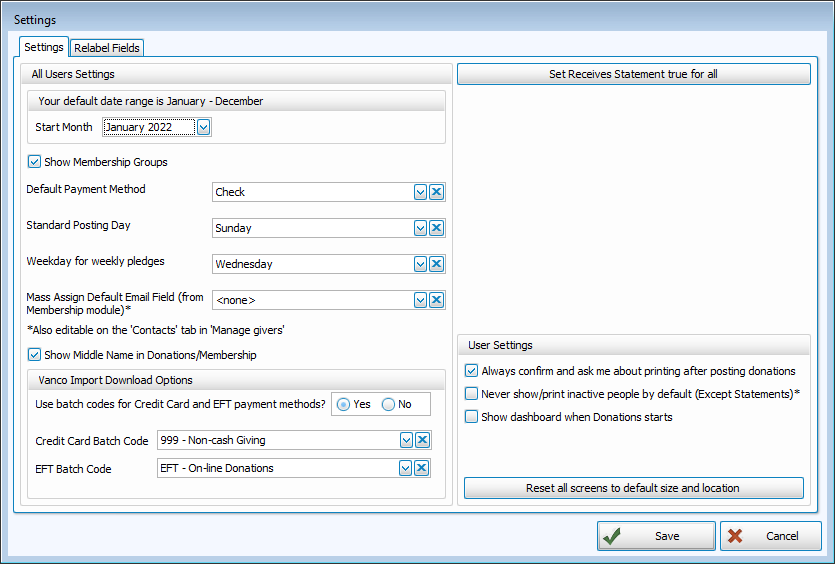
Access Donations Settings
To access from the Button Bar, go to Special Functions > Settings

Module Settings & Defaults
Default Date Range
Select your Start Month from the drop down to mark the beginning of your year in Donations.

Show Membership Groups
Check this box to include the list of Groups you have set up in Membership as potential donors in Donations.

Default Payment Method
Select the Default Payment Method from the drop down to prioritize this option in Enter Donations.

Default Posting Day
Select a day of the week you'll be mostly likely to post donations. Posting on a different date will prompt a warning message to make sure the date is correct. To exclude any default, click the X to clear selection.

Default Pledging Day
Select a day of the week for the day a weekly pledge is due. If you find that your weekly donations are showing 53 weeks, try changing this day to avoid miscalculation of weeks due to leap year.

Default Email Field
This setting tells the Donations modules where your preferred email addresses are stored in Membership. These preferences can be individually set in Manage Givers, but you can also set a default for any email data field in Membership.

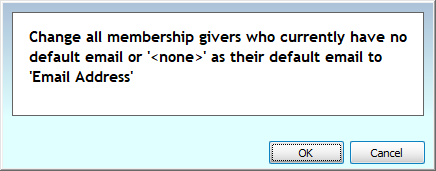
After making a selection, confirm the change for anyone that does not have a specified email.
Show Middle Names
If you have a lot of records, showing middle names might help prevent improper assignments to people with the same or similar names.

Set All to Receive Statement
In Manage Givers, on the Giver # tab, you may opt to exclude someone from getting a statement. This might be relevant for Anonymous accounts or by request. Deselecting the Receives Statement check box prevents statements from generating, even when the individual fits other criteria. If some have been deselected in error, or you'd like reset to the default of everyone having this box checked, click  .
.
Vanco Import Download Options
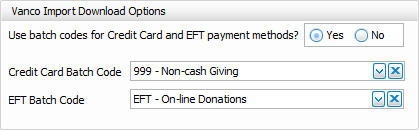
In this section, selecting Yes allows you to auto-assign batch codes to your Vanco imports. You may opt to distinguish credit cards from EFT giving, or you can select the same batch code (i.e. Vanco Donations) for both.
User Settings
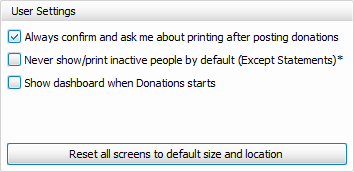
User settings are specific to the log in currently accessing the module. First, the individual user can decide whether they want to be prompted to print a batch report after entering a batch. In the second check list, decide whether those who have been marked as Inactive should be excluded by default. Statements are an exception and if an Inactive person made donations within the specified time period, they will still produce a statement with the default settings. Finally, users can opt to open the Dashboard on start up.
Relabel Fields
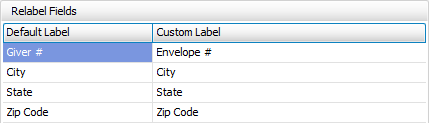
The Relabel Fields tab allows you to change some of the default labels. For example, if you wanted to use the terminology of "Envelope #" instead of "Giver #", you would specify that here.